Authentication
Authentication & Security manages your password and account security settings to keep your account safe.
Change Password
| Field | Description |
|---|---|
| Current Password | Your existing password. |
| New Password | Your new password. Must be at least 8 characters long. |
| Confirm New Password | Re-enter the new password to confirm it. |
Click Update Password to submit the change. Changes take effect immediately.
2 Factor Authentication (2FA)
Two-Factor Authentication adds a second step to signing in. After you enter your password, you also enter a one-time code sent to your email or texted to your mobile number.
A badge next to the heading shows the current status: Disabled or Enabled.
Add a Mobile Number
To get codes by text message, add a mobile number in the Mobile Number field above Two-Factor Authentication. Skip this step if you only want codes by email. The badge next to Mobile Number shows Not set until you confirm a number.
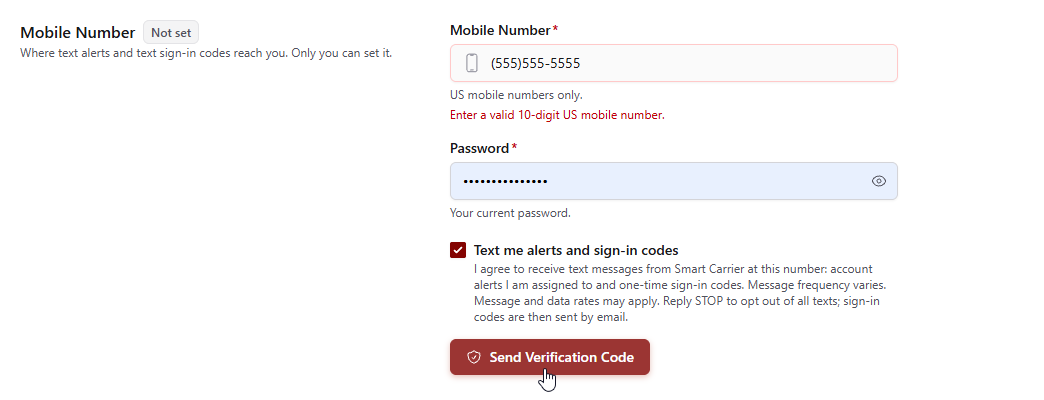
In Mobile Number, enter your 10-digit mobile number. Only US mobile numbers are accepted.
In Password, enter your current password.
Select Text me alerts and sign-in codes to agree to receive text messages from Smart Carrier.
Click Send Verification Code.
In Verification Code, enter the code texted to your number.
Click Confirm Number.
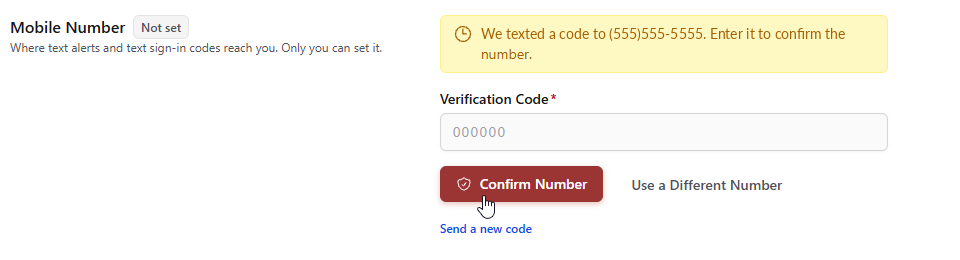
If the code does not arrive, click Send a new code. To enter another number, click Use a Different Number.
The badge changes to Confirmed. To replace the number, click Change Number. To delete it, click Remove.

To stop all text messages, reply STOP to any text. Sign-in codes are then sent by email.
Send Codes To
| Option | Description |
|---|---|
| Sends the code to the email address on your account. | |
| Text message | Texts the code to your mobile number. You must add and confirm a mobile number first. |
The option you do not select stays available as a backup when you sign in.
Enable 2FA
Under Send codes to, select Email or Text message.
In Password, enter your current password.
Click Enable Two-Factor Authentication.
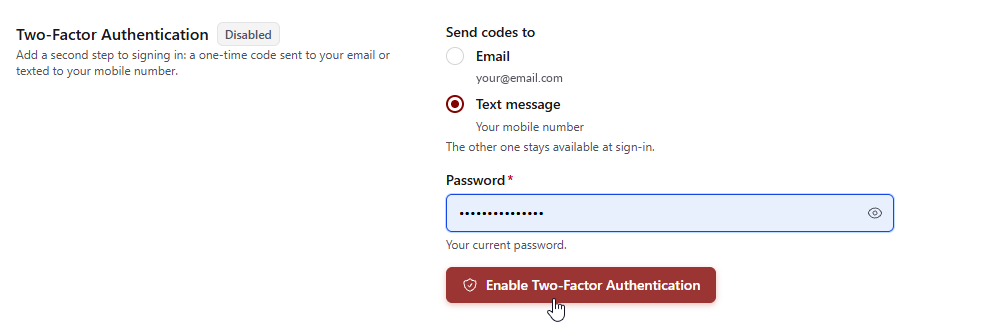
The badge changes to Enabled, and Enabled since shows the date you turned it on.
Disable 2FA
Click Disable Two-Factor Authentication. A code is sent to your selected method.
In Password, enter your current password.
In Verification Code, enter the code you received.
Click Disable.
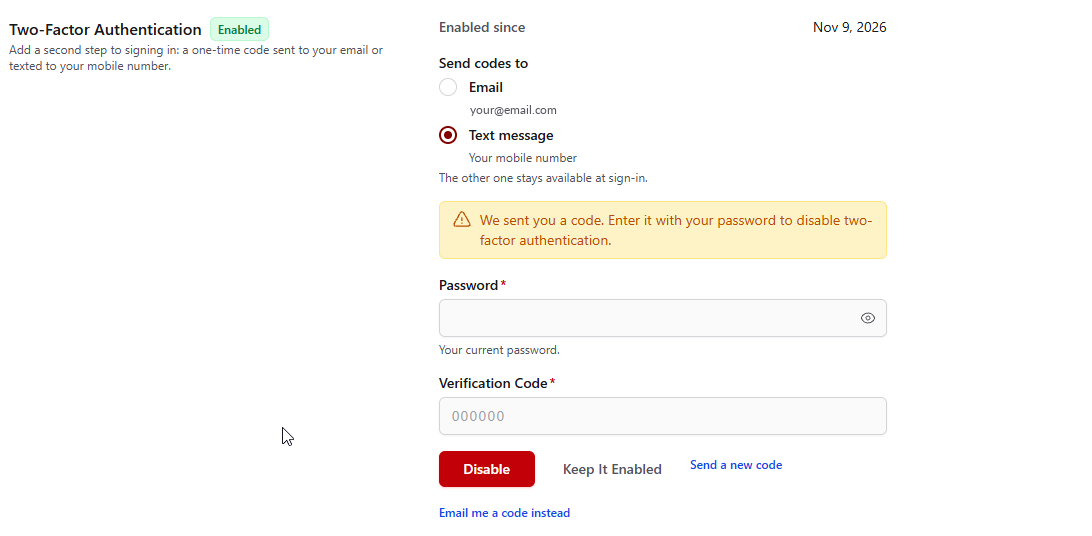
If the code does not arrive, click Send a new code. If you use text messages, you can click Email me a code instead. To cancel, click Keep It Enabled.
Security Best Practices
- Use a unique password that you don’t use on other websites.
- Consider using a password manager to generate and store secure passwords.
- Change your password regularly, especially if you suspect it may be compromised.
- Never share your password with others or store it in unsecured locations.